
IPTV Playlist Health Checker: Test Your Streams
Paste a playlist and it samples the streams directly — showing which channels are dead, which time out, and how fast the servers actually respond.
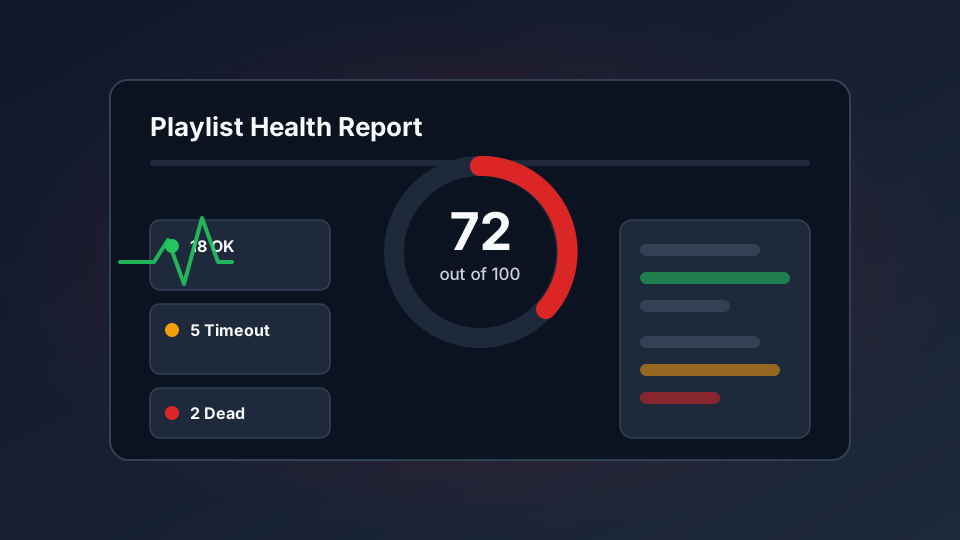
A playlist can be valid and still useless, because the URLs in it point at servers that are down. This tool samples your streams from your own browser and tells you how much of the list is genuinely alive.
Structure Is Not Health
A playlist can be perfectly valid and still play nothing. The file can be well formed, correctly categorised, complete with logos and guide IDs — and every channel can still be dead, because the URLs inside it point at servers that no longer exist.
That is a different failure from the one a playlist parser catches, and it needs a different tool. If you want to know whether the file itself is well built, use the M3U parser. This page answers the other question: are these streams actually alive?
What the Check Actually Does
The tester reads your playlist, picks a sample of stream URLs at random, and requests each one directly from your browser. It records three things per stream:
- Responding — the host answered the request. The stream is reachable from where you are.
- Timed out — nothing came back within the timeout window. Often a slow or overloaded server, sometimes a dead one.
- No response — the host did not answer at all. Usually a dead hostname or a server that has been switched off.
It also measures response time, and reports the average and the fastest, because a provider whose streams all take 4 seconds to start is a different experience from one that responds in 200 milliseconds.
How to Run It
Paste your playlist below, choose how many channels to sample, and press the button. Ten streams gives a quick answer; a hundred gives a reliable one. The check runs entirely in your browser and nothing is uploaded.
Stream Liveness Tester
Samples your playlist and pings each stream host directly from your browser.
| Status | Channel | Category | Response |
|---|
The Reachability Score
The score at the top is a single number out of 100, built from the share of streams that responded, the share that timed out, and the response times. It is a rough summary, not a quality rating — but it separates the two situations you actually care about:
| Score | What it usually means |
|---|---|
| 80–100 | The playlist is healthy. If channels still will not play, the problem is your app or device, not the file. |
| 50–79 | Mixed. Some servers are overloaded or unreliable, which usually shows up as channels that work sometimes. |
| Below 50 | The playlist is in poor shape. Expect a large number of dead channels. |
Read the per-channel table as well as the score. A single unreachable host can take out a whole category of channels, and the table is where you see which one.
Reading the Results Honestly
Two things will skew a run, and both are worth keeping in mind before you panic.
Your own connection matters. The test runs from your device, over your network. A stream unreachable from your home may be fine elsewhere, and a result of all failures usually means your network or DNS is the problem rather than the provider. If you get zero responses across the board, test a channel you know works before drawing conclusions.
It tests reachability, not playback. A host answering a request does not guarantee a stream that plays. Encoding can still be broken, the video codec can be one your device cannot decode, or the account could be expired. The tool separates those cases out for you — if everything is reachable but nothing plays, it is not a playlist problem.
Timeouts Are Not Always Failures
Live TV servers are often slow to first byte, particularly at peak time. A stream that times out at 9pm on a Saturday may respond in under a second at 11am on a Tuesday. Treat a timeout as “not proven dead” rather than “dead”, and if you get a lot of them, re-run when your connection is quieter.
Timeouts also cluster geographically. If the server is on another continent, every request crosses an ocean twice. That is a real factor in perceived quality and one reason our bandwidth guide covers latency alongside raw speed.
What To Do With a Bad Result
Work out which pattern you are seeing:
- Almost everything dead. Either the playlist is stale or the account has been suspended. Check the playlist is the current one your provider sent you.
- One category dead, rest fine. A single failed host behind a group of channels. Those channels will not come back until the provider replaces it.
- Everything slow, nothing dead. Overloaded servers or a slow route. Try again later, and consider a wired connection before changing provider.
- All dead, including channels you know work. The problem is on your side. Work through channels not working and no signal.
Whichever it is, the honest next step is to send your provider the specific channel names that failed. A report naming 40 dead channels is useful to them; a general complaint is not.
Before You Buy
If you have not subscribed yet, this is a good tool to run on a trial playlist before committing. Ask for a playlist, sample a hundred channels, and look at how many respond and how quickly. It takes two minutes and answers the question that matters — whether the service actually works from where you are, on your connection.
For more on choosing carefully, see what IPTV should cost and whether IPTV is legal where you live.