
IPTV Parental Controls That Actually Work
Most guides stop at the PIN inside the app. That is one layer of three — and the only one a determined child walks straight past.
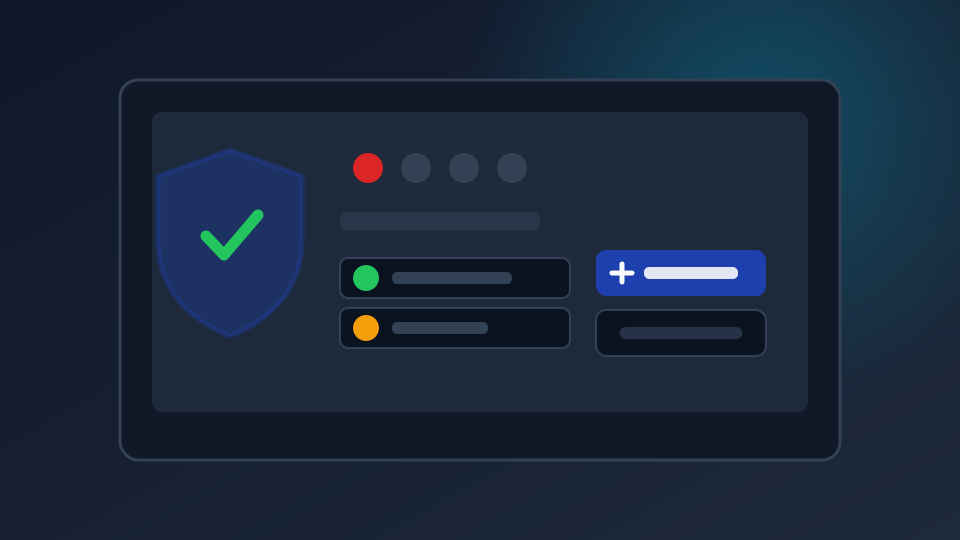
Parental controls on IPTV are less complicated than most guides suggest, but they are also less reliable than most guides imply. The core problem is that controls set inside an app only govern that app on that device. If a child has a phone and your login details, nothing you set in the television’s app will stop them. The solution is layering, and this guide builds each layer.
What Is Actually Available
Every decent IPTV app offers some combination of these:
- PIN protection — a four-digit code required to open adult channels or change settings
- Channel blocklist — channels hidden from the guide entirely
- Multiple profiles — separate favourites and settings per family member
- Time limits — available in some apps, rarely in most
- Hidden categories — some apps let you collapse adult sections out of sight
Quality varies considerably. Smarters Player and TiviMate have the most complete implementations. Very basic apps offer a PIN and nothing else.
Layer 1: Inside the IPTV App
Start here. In your app’s settings, look for a section named something like Security, Parental Controls or Lock.
- Set a PIN that your children cannot guess. Not 1234, not their birth year, not the same code as your phone.
- Lock adult categories, and hide them from the guide rather than only requiring the PIN.
- Add any specific channels you do not want seen to the blocklist.
- Set up a separate profile for each child, with only the channels they should have.
- Require the PIN to change any of these settings, including disabling the controls themselves.
That last point is where most setups fail. If the PIN does not protect the settings, a determined seven-year-old will turn the controls off and you will never know.
Layer 2: On the Device Itself
This is where people stop, and it is a mistake — because the device settings control whether the app can be used at all.
- Android and Android TV — set up a restricted profile or a Google Family Link account. This prevents installing new applications without a PIN.
- Fire TV — Amazon parental controls in Settings, plus a profile PIN.
- Apple TV, iPhone and iPad — Screen Time, with an App Limit or a content restriction. Also enable Ask to Buy so nothing can be purchased without your password.
- Samsung and LG smart TVs — both have parental control menus in the TV settings that lock specific channels by broadcast number.
Layer 2 stops the app being removed or reconfigured. It does not stop someone who already knows your login from signing in again.
Layer 3: On Your Network
This is the only layer that covers every device at once, including a child’s phone.
Most routers have built-in parental controls that filter by category across the whole network. Log into your router, look for Parental Controls, Parental or Access Control, and enable filtering with adult content blocked. It applies to everything connected through your Wi-Fi, with no way to bypass it from the device.
For travel and mobile devices, a filtering app installed on each phone adds the same protection off-network. There is no single setting that covers a device everywhere, which is why this layer needs thought per device.
Choosing a PIN That Works
Most children break weak PINs by watching. They learn four-digit codes from door keypads, cash machine PINs and television remotes. So:
- Avoid 1234, 0000, 1111, 2580 and any vertical or diagonal line on a keypad
- Avoid birth years and dates anyone in the family knows
- Do not reuse your phone or banking PIN
- Change it if a child ever sees you type it
What These Controls Will Not Do
Being clear about this saves a lot of false confidence:
- They do not follow a child off-network. App controls apply to one app on one device.
- They do not stop someone with your login details. That is why layer 3 and separate accounts matter.
- They do not work on a device you have not set up. A child’s own phone, unconfigured, has no restrictions.
- They are not parental advice. Technical limits are one part of the picture.
Devices to Set Up First
If you are starting from nothing, do these in order, and you will cover the most ground in an evening:
- The main television in the living room — app PIN plus locked settings
- Your router — network-level filtering, which covers everything at once
- Each child’s own phone or tablet — Screen Time or family controls, including app install restrictions
- Any second television in a bedroom
Once the router is filtering, the individual app PINs become a second layer rather than the only one — which is exactly where you want them.
On Mobile Devices Away From Home
On a phone or tablet, keep the IPTV app inside a restricted profile, disable in-app purchases, and use a content filter app that works on mobile data rather than relying on the home network. Our device guide covers which hardware supports these features properly.