
How to Calculate Mbps & Bandwidth You Need for IPTV (SD to 4K)
The exact Mbps each quality needs, a worked calculation for one screen or many, and the headroom that stops the buffering.
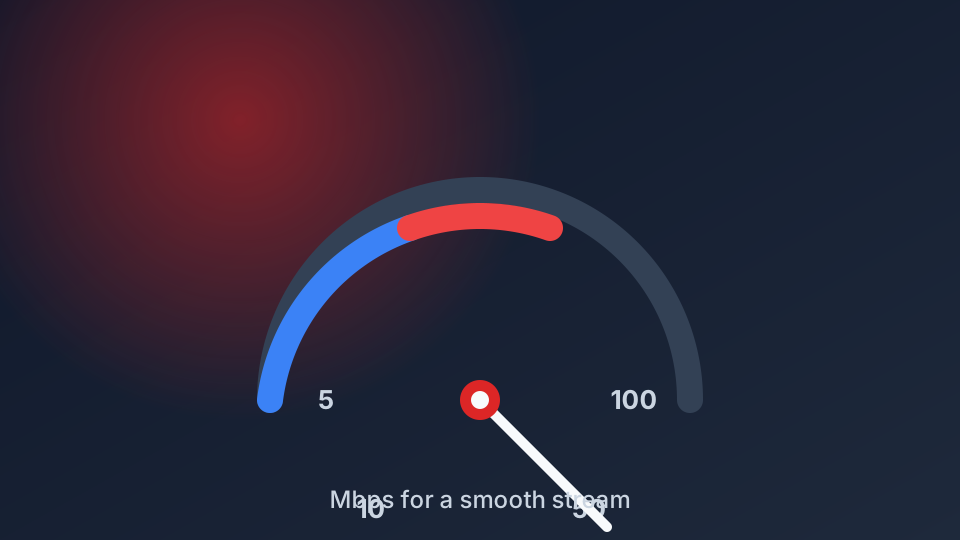
How many Mbps for IPTV is not one number, it depends on the quality you watch and the bitrate your provider encodes. Get the maths right once and you stop guessing why a stream stutters. This guide gives the real ranges from SD to 4K and shows how to calculate the figure for your own home.
What Each Quality Level Actually Costs in Mbps
The quickest way to answer how many Mbps for IPTV is to look at the bitrate the channel is encoded at, not at its label. Resolution tells you how many pixels you get; bitrate tells you how many bits per second travel down your line. These are the working ranges, plus the line speed you should really have to run them comfortably:
| Quality | Realistic bitrate | Recommended line speed |
|---|---|---|
| SD 480p | 2-4 Mbps | 10 Mbps |
| HD 720p | 8-12 Mbps | 25 Mbps |
| Full HD 1080p | 15-20 Mbps | 35 Mbps |
| 4K UHD 2160p | 25-50 Mbps | 60-100 Mbps |
| 4K HDR | 40-80 Mbps | 100 Mbps plus |
The first column is what the stream consumes. The third is what your line should measure, and it is deliberately higher. The next sections explain why that gap exists. If you want a ballpark without doing the arithmetic yourself, our IPTV bandwidth calculator handles it.
Why Bitrate Matters More Than Resolution
Two channels can both claim to be 4K and need wildly different bandwidth. A live sports feed full of fast motion is encoded at a much higher bitrate than a slow studio interview, even though both are 2160p. The codec matters too: a provider using H.265 (HEVC) needs roughly a third less bitrate than older H.264 for the same picture quality.
So when a friend streams 4K on a modest line and yours stutters, it is usually not the resolution, it is the source encoding and the bitrate behind it. You can lower your own demand in the app settings, which we cover in our guide to IPTV picture quality settings.
Speed Test vs Real Sustained Throughput
A speed test measures a short burst. A live stream needs a steady rate for hours. Peak and sustained are not the same number, and they rarely match at 8pm when the whole street is watching. Add WiFi loss, which can quietly shave a third off the figure, and your advertised 100 Mbps may behave like 40 Mbps when it counts.
The fix is headroom. Take the bitrate of the stream and double it as your target line speed. A 20 Mbps Full HD channel wants a line that tests around 40 Mbps. That margin absorbs congestion, WiFi loss, and everything else sharing the connection.
A Worked Example: One Screen vs Multi-Room
Say one 4K screen runs at 35 Mbps. Double it for headroom and you want about 70 Mbps. A 100 Mbps fibre line handles that easily. Now add a second 4K screen and one HD screen: 35 plus 35 plus 10 is 80 Mbps of bitrate, so with the same headroom you are looking at roughly 160 Mbps, which means a 200 Mbps line or wired connections to cut the WiFi loss.
The rule is simple: add the bitrate of every screen that streams at the same time, then double the total. Do not forget phones, cloud backups, and game updates quietly competing for the same line.
Downloading vs Streaming: Watch Ping and Jitter
A 50 Mbps download does not guarantee a stable 25 Mbps stream. Downloads are bursty, they can pause and resume without you noticing. Live video cannot, so what actually keeps it steady is low jitter, the variation in delay, and low packet loss. Ping under about 50 ms and jitter under 20 ms are healthy targets.
If you buffer despite a fast download, the culprit is rarely raw speed. It is usually evening congestion, WiFi interference, or your ISP treating video traffic differently. Our guide on Albanian ISP IPTV throttling covers that, and if the line is fine the issue may instead be the health of your playlist.
Test It Before You Blame the Line
Run a speed test at peak evening hours, not at noon, and check ping and jitter alongside download. Then open a real heavy channel, ideally live sport, while other devices are active. If that holds, your setup is fine. If it does not, work through how much internet speed IPTV needs and our fix IPTV buffering guide. For the most demanding case, see why live sports is the hardest test of any connection.
Conclusion
Work out the answer in three steps: find the bitrate of the quality you watch, add the bitrate of every screen streaming at once, then double the total for headroom. That double figure is the speed you actually need. If you would rather not do the sum by hand, our IPTV bandwidth calculator gives the number instantly, and when you are ready for a stream that respects it, compare the Vivo IPTV plans.