
How to Set Up IPTV on iPhone & iPad in 2026
Your iPhone is already an IPTV box — a very powerful one. Here's the best iOS apps, the 3-minute setup, and how to get it on the big screen.
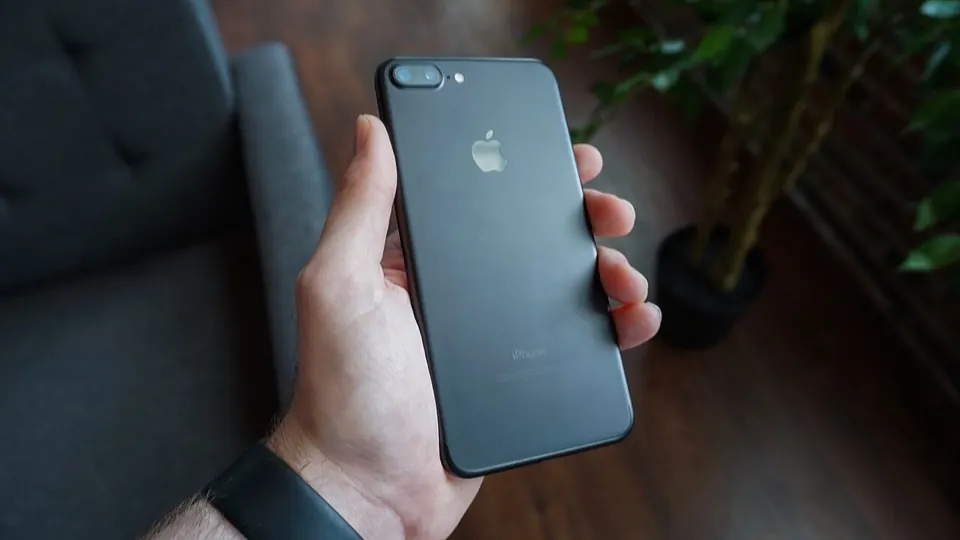
IPTV works brilliantly on iPhones and iPads — the screens are sharp, the Wi-Fi is usually fast, and AirPlay means you can throw anything onto your TV in one tap. The only step that trips people up is the player: unlike Android, iOS limits sideloading, so you need an app from the App Store that knows how to handle IPTV playlists. This guide shows you which ones and how to set them up with your Vivo IPTV subscription.
The 3 Best iOS IPTV Apps
- IPTV Smarters Pro — the most popular iOS player. Supports Xtream Codes, M3U and M3U Plus. Clean interface, works on both iPhone and iPad, supports picture-in-picture on iPadOS.
- GSE Smart IPTV — a long-standing favorite. Great for free M3U playlists (see our free vs paid guide for what to expect), with solid EPG support.
- IPTV Player (by Sports IPTV) — lightweight and simple, the fastest option if you just want to type your portal in and go.
All three are free to install from the App Store. Screenshots, ratings and usage details are covered in our full IPTV apps comparison.
Step 1 — Install the App
Open the App Store, search for the player you picked, and install it. No special permissions are needed on iPhone or iPad — unlike Android, you won't have to fiddle with sideloading or "unknown sources."
Step 2 — Connect to Vivo IPTV
Open the app and look for one of these options (the wording varies by app):
- Add Playlist → Xtream Codes / M3U URL.
- Enter the portal URL from your Vivo IPTV welcome email (the address looks like
provider.com:8080or similar). - Enter your username and password exactly as provided — they're case-sensitive.
- Tap Add / Log In. The app downloads your channel list in a few seconds.
That's the whole setup. Your Vivo IPTV channels now live on your iPhone — check the channel lineup by country to see what you're getting.
AirPlay to Your TV
Want it on the big screen? Two taps:
- Start a channel in your IPTV app.
- Swipe down from the top-right corner and tap the AirPlay icon (or open Control Center → now playing → AirPlay).
- Select your Apple TV or AirPlay-compatible smart TV.
No cable, no box, no mirroring needed — the video streams straight to your TV while your iPhone stays free. If your TV doesn't support AirPlay, our smart TV setup guide has the direct-to-TV alternative.
Using Picture-in-Picture
On iPadOS (and iPhone running recent iOS), most IPTV players support picture-in-picture: start a channel, then press Home — the stream shrinks to a corner window while you use other apps. It's the single best feature for watching sports while browsing. Our live sports guide covers more ways to make the most of it.
Battery, Data & Buffering Tips
- IPTV over mobile data uses roughly 1.5–2 GB per hour on HD — keep an eye on your plan.
- On cellular, close background apps and use a player's "lower bitrate" option to protect your allowance.
- Buffering on iPhone is almost always a Wi-Fi issue, not an app issue — our buffering fixes apply to iOS too.
- Keep iOS updated; older app versions occasionally break after an OS update.
Still Stuck?
Vivo IPTV includes free setup help on every plan. If your playlist loads but a channel won't play, or you can't find the right option in your app, contact us on WhatsApp, Telegram or email — we'll walk you through the exact taps.