
How to Set Up IPTV on Android Phone & Tablet in 2026
Android chose the path of maximum freedom for IPTV — hundreds of players, no sideload stress, and easy casting. Here's the full setup walkthrough.
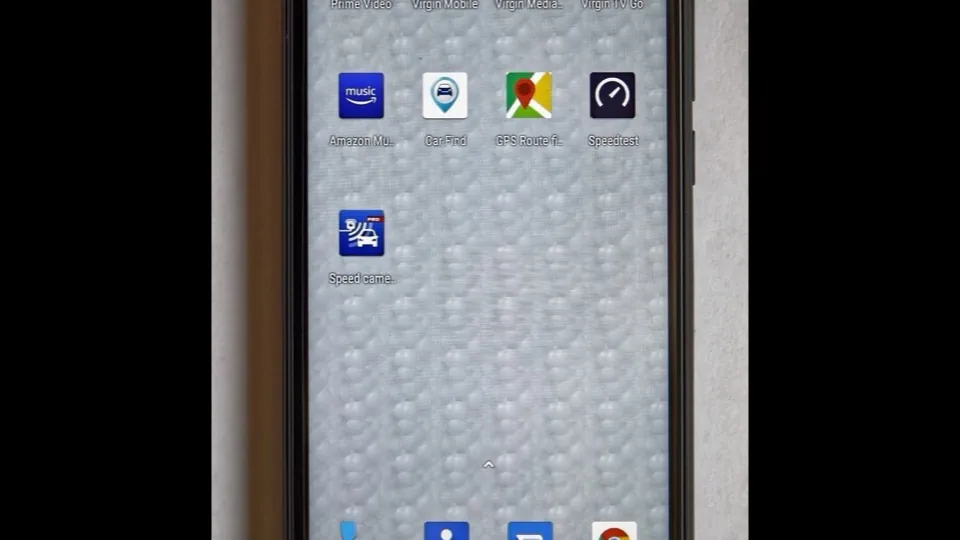
Android phones and tablets are arguably the best IPTV devices that aren't a TV: they have the biggest selection of players, sideloading is officially supported, and Cast makes flashing to the big screen trivial. If you're setting up Vivo IPTV (or any service) on an Android device, this guide takes you from zero to streaming in minutes.
Your Best Android IPTV Players
- TiviMate — the gold standard on Android TV and phones. Beautiful interface, excellent EPG, and works with Xtream Codes and M3U.
- IPTV Smarters Pro — the most popular cross-platform player, feature-packed and beginner-friendly.
- IBO Player — fast, lightweight, and great for older phones that struggle with heavier apps.
All install from the Google Play Store. For a deeper comparison — including free players and how they differ — see our best IPTV apps guide.
Step 1 — Install the Player from the Play Store
Open the Play Store, search for your player, and install it. Unlike some other platforms, Android doesn't restrict this — everything you need is officially available. If you prefer an app that isn't on Google Play, Android lets you sideload an APK, but the Play Store versions are safer and auto-update.
Step 2 — Load Your Vivo IPTV Subscription
Now connect the player to your account:
- Open the app and choose Add Playlist or Add Xtream Codes.
- Paste the portal URL from your Vivo IPTV welcome email.
- Enter your username and password (they're case-sensitive — type them exactly).
- Hit Login / Save. Your full channel list loads automatically.
Done — you're streaming. Browse what's available by country and category on our channel page.
Cast to Your TV (Chromecast / Google TV)
To move from phone screen to TV, most IPTV players include a Cast button:
- Start a channel in the player.
- Tap the Cast icon (top-right corner in most apps).
- Pick your Chromecast or Google TV device.
The stream plays on your TV while your phone becomes a remote — full screen, no mirroring lag. If your TV uses a different system, our smart TV setup guide has the direct method.
Screen Mirroring (No Chromecast Needed)
No Chromecast? Use screen mirroring: open Settings → Connected devices → Cast (on Samsung: Smart View) and pick your TV. It mirrors everything on screen — including the app. It uses a little more data than native casting, but it works with almost any modern TV. This is also how many people set up AirPlay-style streaming on their phone without extra hardware.
Data Usage & Buffering on Android
- HD streaming uses about 1.5–2 GB/hour; 4K more. Use Wi-Fi for long sessions.
- If buffering appears on strong Wi-Fi, it's almost always the network, not the app — our buffering solutions sort it out.
- Adjust the player's buffer size setting upward if you're on slower home internet.
- For the sharpest picture on a tablet, set quality to Original/4K inside the player — details in our picture quality guide.
Still Stuck?
Every Vivo IPTV plan includes free setup help. If your playlist loads but a channel won't play, or an app behaves oddly, contact us via WhatsApp, Telegram or email — we'll configure it with you in real time.